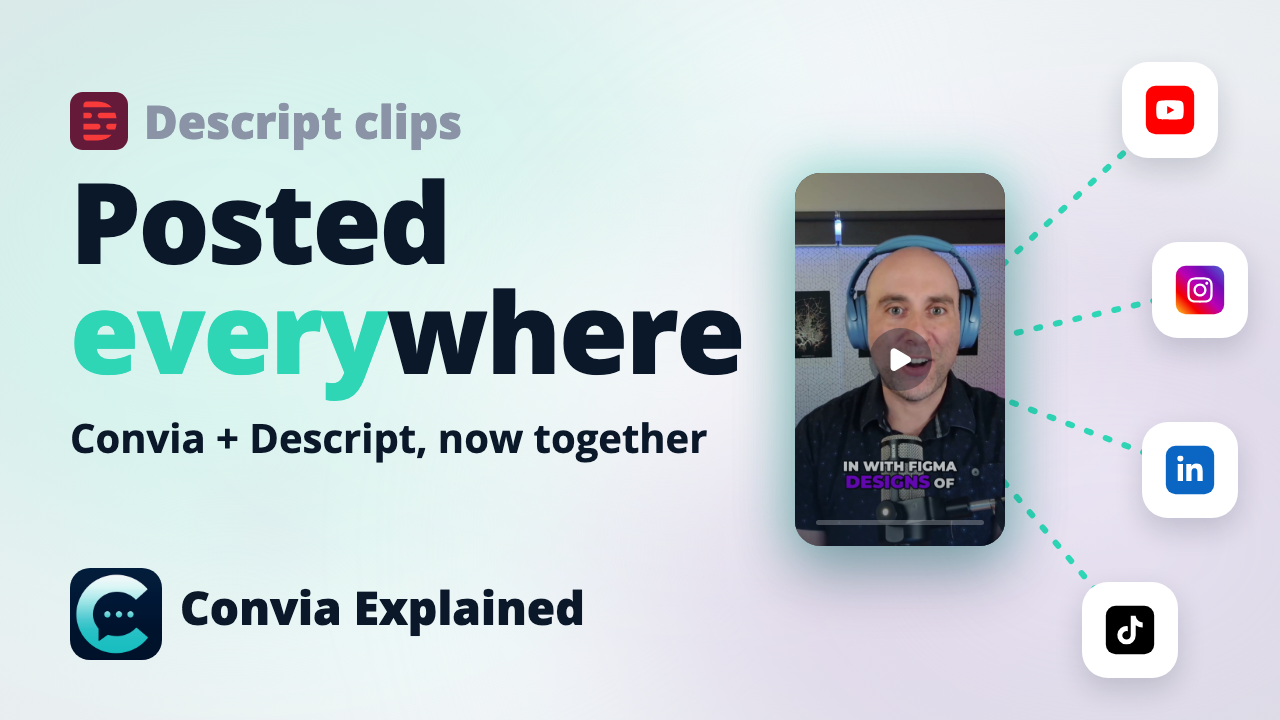
Bring your Descript clips into Convia, then schedule them from the episode's Clips page. Convia writes a post for each channel you pick, spaces the clips out on your calendar, and publishes them once you approve. As of November 2026, Convia and Descript work together both ways: you can export an episode from Descript straight into Convia, and make or import Descript clips from inside Convia.
How Convia and Descript work together
Descript is where you edit. Convia is where an episode becomes posts, campaigns and a calendar. The integration connects the two in both directions:
- Descript to Convia. In Descript's Export menu, Convia is a publish destination. Your episode lands in Convia with Descript's transcript.
- Convia to Descript and back. With your own Descript API key, you can send a recording to Descript with a brief and your Brand Kit files, let Descript's agent edit it, and bring the finished cut back as the final version.
- Clips. From an episode in Convia, you can have Descript make clips, or import clips you already made in a Descript project.
Step 1: Export your episode from Descript
- In Descript, open Export.
- Choose Convia as the destination and publish.
- In Convia, confirm the import.
The video or audio and Descript's transcript arrive together, so there is nothing to re-upload and nothing to re-transcribe. If Descript sends no transcript with an export, you can transcribe the episode from its Transcript tab.
Step 2: Make or import your clips
Making or importing clips from Convia uses your own Descript account:
- In Convia, go to Settings > Descript, paste your Descript API key and choose Validate.
- Open the episode's Clips page and choose Add clips > Descript.
- Pick one:
- Create clips with Descript. Choose Find moments and Convia suggests moments that fit your show's themes, then writes the brief for Descript. Descript's agent cuts the clips. Review what it made and import the ones you want, up to 5 at a time.
- Import clips from Descript. Bring in clips you already made in the linked Descript project.
Imported clips appear on the episode's Clips page with a Descript badge. Convia does not resell Descript credits: all editing and render credits are billed to your Descript account.
Step 3: Schedule the clips, with a post for each channel
- On the Clips page, tick the clips and choose Schedule selected.
- Pick your channels. Each clip posts once to every channel you pick, and a clip a channel can't take is skipped there.
- Set a pace, a number of clips a week on each channel, or choose Finish by a date.
- Check the estimated cost in credits, then choose Generate. Convia writes a post for each clip on each channel.
- Preview and edit the posts, then save them as a draft or launch them. Nothing publishes until it is approved.
Schedule selected is included on plans with bulk scheduling.
Other ways to post Descript clips from Convia
- In a campaign. Add the clips to a campaign planned around your release. Clips you pick become new posts with a caption written for each channel, and the credits are shown before you launch.
- With Clip Autopilot. Set up an automation that drafts posts from clips you have not posted yet. The drafts wait in Approvals.
A posting plan for podcasters
This is Convia's recommendation, not a platform rule:
- Pick 3 to 5 clips per episode, each built around a single idea.
- Spread them over a week or two instead of posting them all on release day.
- Write each post for its platform. A LinkedIn post and a TikTok caption are different jobs.
- Check which clips did best (Analytics > By Clip in Convia) and make more like them.
FAQ
Do I need a Descript API key?
To export from Descript into Convia, you publish from Descript's Export menu. To create or import clips, or send a recording to Descript from Convia, you connect your own Descript API key under Settings > Descript.
Who pays for Descript's credits?
You do, on your Descript plan. Convia does not resell Descript credits; editing and render credits are billed to your Descript account. Writing posts in Convia uses Convia credits, shown before you generate.
Does Convia re-transcribe my episode?
No. An export from Descript arrives with Descript's transcript. If an export comes without one, you can transcribe the episode from its Transcript tab.
Can I import clips I already made in Descript?
Yes. On the episode's Clips page, choose Add clips > Descript > Import clips from Descript, with the Descript project linked.
Do the posts go out automatically?
No. Convia writes and schedules the posts, and nothing publishes until it is approved.
Which platforms can I post to?
Any channel you connect in Convia, including YouTube, Instagram, TikTok, LinkedIn, Facebook, Pinterest, Threads, X and Bluesky.
Sources
Facts as of November 2026.
- The Descript integration in Convia: Settings > Descript, Import from Descript, Create clips with Descript, the Descript clips review page, Bulk schedule clips and Automations (Convia app, November 2026).
- Descript's Export menu lists Convia as a publish destination (live November 11, 2026).
- The posting plan is Convia's own recommendation.